Ads-Banner Header

Showing posts with label AutoCAD. Show all posts

Saturday, May 18, 2013

ebook - Up and Running with AutoCAD® 2012 2D Drawing and Modeling

Up and Running with AutoCAD® 2012 2D Drawing and Modeling | Elliot Gindis | Elsevier | 2012 | English | 549 p | pdf | 18.8 MB | ISBN : 978-0-12-387683-6 | This book is not like most on the market. While many authors certainly view their particular text as unique and novel in its approach, I rarely reviewed one that was clear to a beginner student and distilled AutoCAD concepts down to basic, easy to understand explanations. The problem may be that many of the available books are written by either industry technical experts or teachers but rarely by someone who is actively both. One really needs to interact with the industry and the students, in equal measure, to bridge the gap between reality and the classroom.
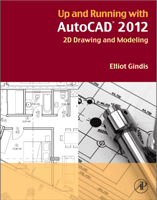
ebook - Up and Running with AutoCAD® 2012 2D Drawing and Modeling
Book Title
:
Up and Running with AutoCAD® 2012 2D Drawing and Modeling
Authors
:
Elliot Gindis
Publisher
:
Elsevier
Year
:
2012
Language
:
English
Pages
:
549 p
File Format
:
pdf
File Size
:
18.8 MB
ABOUT THIS BOOK
This book is not like most on the market. While many authors certainly view their particular text as unique and novel in its approach, I rarely reviewed one that was clear to a beginner student and distilled AutoCAD concepts down to basic, easy to understand explanations. The problem may be that many of the available books are written by either industry technical experts or teachers but rarely by someone who is actively both. One really needs to interact with the industry and the students, in equal measure, to bridge the gap between reality and the classroom.
After years of AutoCAD design work in the daytime and teaching nights and weekends, I set out to create a set of classroom notes that outlined, in an easy to understand manner, exactly how AutoCAD is used and applied, not theoretical musings or clinical descriptions of the commands. These notes eventually were expanded into the book that you now hold. The rationale was simple: I need this person to be up and running as soon as possible to do a job. How do we make this happen?
TEACHING METHODS
This book has its roots in a certain philosophy I developed while attending engineering school many years ago. While there, I had sometimes been frustrated with the complex presentation of what in retrospect amounted to rather simple topics. My favorite quote was, “Most ideas in engineering are not that hard to understand but often become so upon explanation.” The moral of that quote was that concepts can usually be distilled to their essence and explained in an easy and straightforward manner. That is the job of a teacher: Not to blow away students with technical expertise but to use experience and top-level knowledge to sort out what is important and what is secondary and to explain the essentials in plain language.
Such is the approach to this AutoCAD book. I want everything here to be highly practical and easy to understand. There are few descriptions of procedures or commands that are rarely used in practice. If we talk about it, you will likely need it. The fi rst thing you must learn is how to draw a line. You see this command on the fi rst few pages of Chapter 1. It is essential to present the “core” of AutoCAD, essential knowledge common to just about any drafting situation, all of it meant to get you up and running quickly. This stripped down approach proved effective in the classroom and was carefully incorporated into this text.
C O N T E N T S

ACKNOWLEDGMENTS

ABOUT THE AUTHOR

CHAPTER 1
AutoCAD Fundamentals: Part I

1.1
Introduction and Basic Commands

1.2
The AutoCAD Environment

1.3
Interacting with AutoCAD

1.4
Practicing the Create Objects Commands

1.5
View Objects

1.6
Practicing the Edit/Modify Objects Commands

1.7
Selection Methods

1.8
Drawing Accuracy—Part 1

1.9
Drawing Accuracy—Part 2

1.10
OSNAP Drafting Settings

CHAPTER 2
AutoCAD Fundamentals: Part II

2.1
Grips

2.2
Units and Scale

2.3
Snap and Grid

2.4
Cartesian Coordinate System

2.5
Geometric Data Entry

2.6
Inquiry Commands

2.7
Additional Drafting Commands

CHAPTER 3
Layers, Colors, Linetypes, and Properties

3.1
Introduction to Layers

3.2
Introduction to Linetypes

3.3
Introduction to Properties

3.4
In-Class Drawing Project: Floor Plan Layout

CHAPTER 4
Text, Mtext, Editing, and Style

4.1
Introduction to Text and Mtext

4.2
Text

4.3
Mtext

4.4
Style

4.5
Spell Check

4.6
In-Class Drawing Project: Adding Text and Furniture to Floor Plan Layout

CHAPTER 5
Hatch Patterns

5.1
Introduction to Hatch

5.2
Hatch Procedures

5.3
Working with Hatch Patterns

5.4
Gradient and Solid Fill

5.5
In-Class Drawing Project: Adding Hatch to Floor Plan Layout

CHAPTER 6
Dimensions

6.1
Introduction to Dimensions

6.2
Types of Dimensions

6.3
Editing Dimensions

6.4
Customizing Dimensions

6.5
In-Class Drawing Project: Adding Dimensions to Floor Plan Layout

CHAPTER 7
Blocks, Wblocks, Dynamic Blocks, Groups, and Purge

7.1
Introduction to Blocks

7.2
Insert

7.3
Purge

7.4
Wblocks

7.5
Dynamic Blocks

7.6
Groups

CHAPTER 8
Polar, Rectangular, and Path Arrays

8.1
Polar Array

8.2
Rectangular Array

8.3
Path Array

8.4
In-Class Drawing Project: Mechanical Device

CHAPTER 9
Basic Printing and Output

9.1
Introduction to Printing and Plotting

9.2
The Essentials

9.3
The Plot Dialog Box

9.4
Page Setup Manager

CHAPTER 10
Advanced Output—Paper Space

10.1
Introduction to Paper Space

10.2
Paper Space Concepts

CHAPTER 11
Advanced Linework

11.1
Introduction to Advanced Linework

11.2
Pline (Polyline)

11.3
Xline (Construction Line)

11.4
Ray

11.5
Spline

11.6
Mline (Multiline)

11.7
Sketch

CHAPTER 12
Advanced Layers

12.1
Introduction to Advanced Layers

12.2
Script Files

12.3
Layer State Manager

12.4
Layer Filtering

CHAPTER 13
Advanced Dimensions

13.1
Introduction to Advanced Dimensions

13.2
Dimension Style Manager

13.3
Introduction to Constraints

13.4
Geometric Constraints

13.5
Dimensional Constraints

13.6
Dimension Driven Design

CHAPTER 14
Options, Shortcuts, CUI, Design Center, and Express Tools

14.1
Options

14.2
Shortcuts

14.3
Customize User Interface

14.4
Design Center

14.5
Express Tools

CHAPTER 15
Advanced Design and File Management Tools

15.1
Introduction to Advanced Design and File Management Tools

15.2
Align

15.3
Audit and Recover

15.4
Blend

15.5
Break and Join

15.6
CAD Standards

15.7
Calculator

15.8
Defpoints

15.9
Divide and Point Style

15.10
Donut

15.11
Draw Order

15.12
eTransmit

15.13
Filter

15.14
Hyperlink

15.15
Lengthen

15.16
Object Tracking (OTRACK)

15.17
Overkill

15.18
Point and Node

15.19
Publish

15.20
Raster

15.21
Revcloud

15.22
Sheet Sets

15.23
Selection Methods

15.24
Stretch

15.25
System Variables

15.26
Tables

15.27
Tool Palette

15.28
UCS and Crosshair Rotation

15.29
Window Tiling

15.30
Wipeout

CHAPTER 16
Importing and Exporting Data

16.1
Introduction to Importing and Exporting Data

16.2
Importing and Exporting to and from MS Offi ce Applications

16.3
Screen Shots

16.4
JPG

16.5
PDFs

16.6
Other CAD Software

16.7
Exporting and the Save As Feature

16.8
Inserting and OLE

CHAPTER 17
External References (Xrefs)

17.1
Introduction to Xrefs

17.2
Using Xrefs

17.3
Layers in Xrefs

17.4
Editing and Reloading Xrefs

17.5
Multiple Xrefs

17.6
Ribbon and Xrefs

CHAPTER 18
Attributes

18.1
Introduction to Attributes

18.2
Creating the Design

18.3
Creating the Attribute Defi nitions

18.4
Creating the Attribute Block

18.5
Attribute Properties and Editing

18.6
Attribute Extraction

18.7
Invisible Attributes

CHAPTER 19
Advanced Output and Pen Settings

19.1
Introduction to Advanced Output and Pen Settings

19.2
Setting Standards

19.3
The ctb File

19.4
Additional ctb File Features

19.5
The lwt Option

CHAPTER 20
Isometric Drawing

20.1
Introduction to Isometric Perspective

20.2
Basic Technique

20.3
Ellipses in Isometric Drawing

20.4
Text and Dimensions in Isometric Drawing

Appendices

INDEX

Thursday, May 16, 2013

Autodesk AutoCAD 2014

civiliana-Autodesk AutoCAD 2014Free Download Autodesk AutoCAD 2014 [Compatible with 32-bit & 64-bit | Full Free + keygen]. Kali ini, Autodesk hadir dengan logo baru untuk AutoCAD 2014. Tampilan logo dan halaman loadingnya yang 3D, jadi terasa lebih hidup dan segar. Untuk warna, masih tetap didominasi warna merah. Sedangkan untuk tampilan pada "workspace" atau "halaman kerja" masih tetap sama seperti versi sebelumnya. Dan untuk kinerja, kami belum bisa memberikan komentar, karena kami belum mencoba fitur-fiturnya. Yah... maklum, namanya juga masih baru... hehehehehe...
Ok, langsung aja. Di edisi ini, kami hadirkan versi AutoCAD 2014 yang kompatibel dengan Sistem Operasi Windows 32-bit dan 64-bit dalam satu paket.
Untuk cara aktivasinya, masih sama dengan cara aktivasi pada AutoCAD versi 2013.
Screenshoot :
Autodesk AutoCAD 2014
System Requirements
For 32-Bit AutoCAD 2014
  • Windows® 8 Standard, Enterprise, or Professional edition, Windows® 7 Enterprise, Ultimate, Professional, or Home Premium edition, or Windows XP® Professional or Home edition (SP3 or later) operating system;
  • For Windows 8 and Windows 7: Intel® Pentium® 4 or AMD Athlon™ dual-core processor, 3.0 GHz or higher with SSE2 technology;
  • For Windows XP: Pentium 4 or Athlon dual-core processor, 1.6 GHz or higher with SSE2 technology;
  • 2 GB RAM (4 GB recommended);
  • 6 GB free disk space for installation;
  • 1,024 x 768 display resolution with true color (1,600 x 1,050 recommended);
  • Microsoft® Internet Explorer® 7 or later web browser;
  • Install from download or DVD.
For 64-Bit AutoCAD 2014
  • Windows 8 Standard, Enterprise, or Professional edition, Windows 7 Enterprise, Ultimate, Professional, or Home Premium edition, or Windows XP Professional (SP2 or later);
  • Athlon 64 with SSE2 technology, AMD Opteron™ processor with SSE2 technology, Intel® Xeon® processor with Intel EM64T support and SSE2 technology, or Pentium 4 with Intel EM64T support and SSE2 technology;
  • 2 GB RAM (4 GB recommended);
  • 6 GB free space for installation;
  • 1,024 x 768 display resolution with true color (1,600 x 1,050 recommended);
  • Microsoft® Internet Explorer® 7.0 or later web browser;
  • Install from download or DVD.
Additional requirements for large datasets, point clouds, and 3D modeling
(all configurations)
  • Pentium 4 or Athlon processor, 3 GHz or greater, or Intel or AMD dual-core processor, 2 GHz or greater;
  • 4 GB RAM or more;
  • 6 GB hard disk space available in addition to free space required for installation;
  • 1,280 x 1,024 true color video display adapter 128 MB or greater, Pixel Shader 3.0 or greater, Microsoft® Direct3D®-capable workstation-class graphics card.

Monday, December 31, 2012

ebook - AutoCAD® Professional Tips and Techniques

AutoCAD® : Professional Tips and Techniques | Lynn Allen - Scott Onstott | Wiley Publishing, Inc. | 2007 | English | 339 p | pdf | 16 MB | ISBN : 978-0-470-08454-0 | You’ve been working with AutoCAD for quite some time now, and you feel you’ve got the program under control. You can get your job done, on time, with minimal stress, thank you very much! But you can’t help asking yourself if there’s a better way : Could there be a better way to set up the user interface so I can reach my favorite tools more quickly?; How can I eliminate some of the AutoCAD tedium that causes me to focus more on drafting than my design?; What are the top-secret tips and techniques that the AutoCAD pros of the world are using to get their jobs done faster?; If any of this rings true to you, then you’re in the right place, with the right book.
ebook - AutoCAD® Professional Tips and Techniques
Book Title
:
AutoCAD® : Professional Tips and Techniques
Authors
:
Lynn Allen
Scott Onstott
Publisher
:
Wiley Publishing, Inc.
Year
:
2007
Language
:
English
Pages
:
339 p
File Format
:
pdf
File Size
:
16 MB
You’ve been working with AutoCAD for quite some time now, and you feel you’ve got the program under control. You can get your job done, on time, with minimal stress, thank you very much! But you can’t help asking yourself if there’s a better way :
  • Could there be a better way to set up the user interface so I can reach my favorite tools more quickly?
  • How can I eliminate some of the AutoCAD tedium that causes me to focus more on drafting than my design?
  • What are the top-secret tips and techniques that the AutoCAD pros of the world are using to get their jobs done faster?
If any of this rings true to you, then you’re in the right place, with the right book.
Who Can Benefit from This Book
If you’re new to AutoCAD and still trying to figure out the basics, then put down this book and find a nice AutoCAD primer. You won’t be happy here. To truly benefit from this book, you need a sound understanding of AutoCAD, and you need to have mastered the basics. AutoCAD: Professional Tips and Techniques is intended to take you to the next level—to help you reach AutoCAD productivity heights you never imagined were possible! Anyone using an AutoCAD-based product such as AutoCAD LT, Architectural Desktop, AutoCAD Mechanical, AutoCAD Electrical, or AutoCAD Map 3D can benefit from reading this book.
Contents
Introduction
Chapter 1
Arranging the AutoCAD User Interface
Tweaking Windows
Finding Help
Using Workspaces
Organizing the Interface
Inputting with the Keyboard and Mouse
Chapter 2
Drawing and Editing
Boosting Productivity
Drawing and Editing Tips
Living with Layers
Chapter 3
Annotation
Hatches
Text and Dimensions
Attributes and Fields
Tables
Chapter 4
Layouts and Sheets
Laying It Out
Looking through the Viewport
Lost in Space
Nice Clean Sheets
Chapter 5
Dynamic Blocks
Block Basics
Way Off Base
Play with Parameters
Associate Actions
Chapter 6
3D Modeling
Using Coordinate Systems
Creating 3D Objects
Using 3D Editing Tools
3D Grab Bag
Chapter 7
Visualization
Navigating in Virtual Space
Viewing in Style
Presenting Realistic Imagery
Chapter 8
Sharing Data
Moving Data between Drawings
Making External References
Working with Other Applications
Chapter 9
Plotting and Publishing
Plotting
Publishing
Chapter 10
Customization
Customizing Tool Palettes
The Menu Legacy
Customizing the User Interface
Customizing Workspaces
CUI for the Enterprise
Index

Monday, September 10, 2012

Autodesk AutoCAD Civil 3D 2013

civiliana-Autodesk AutoCAD Civil 3D 2013Free Download Autodesk AutoCAD Civil 3D 2013 [32 bit] dan [64 bit] - Full Free + keygen.
AutoCAD® Civil 3D®, adalah software untuk disain teknik sipil, analisis dan simulasi. AutoCAD® Civil 3D® ini adalah semacam AutoCAD plus-plus. AutoCAD® Civil 3D®, memiliki fasilitas yang sama dengan AutoCAD ditambah dengan beberapa fitur khusus seperti :
3D model-based design, Design tools, Geospatial functionality, Hydrology and hydraulics, Optimize material usage, Visualization, etc yang biasa digunakan dalam bidang teknik sipil.
Untuk mendapatkan versi terbaru AutoCAD Civil 3D 2013, download linknya telah kami sediakan pada bagian bawah postingan ini. Sedangkan untuk versi 2012 anda bisa temukan disini (Autodesk AutoCAD Civil 3D 2012).
Screenshoot :
Autodesk AutoCAD Civil 3D 2013
System Requirements
For 32-Bit AutoCAD Civil 3D 2013
  • Microsoft® Windows® 7 (recommended) Enterprise, Ultimate, or Professional edition or Microsoft® Windows® XP Professional edition (SP3 or later);
  • For Windows 7: Intel® Pentium® 4 processor or AMD Athlon™ dual-core processor, 3.0 GHz or faster with SSE2 technology;
  • For Windows XP: Intel Pentium 4 or AMD Athlon dual-core processor, 1.6 GHz or faster with SSE2 technology;
  • 2 GB RAM minimum (4 GB recommended);
  • 12 GB disk space for installation (7 GB for electronic download with at least 2 GB free after installation);
  • 1,280 x 1,024 true color video display adapter (1,600 x 1,200 with true color recommended, multiple monitors are supported);
  • Microsoft® Internet Explorer® 7.0 or later.
For 64-Bit AutoCAD Civil 3D 2013
  • Windows 7 (recommended) Enterprise, Ultimate, or Professional edition or Windows XP Professional edition (SP2 or later);
  • AMD Athlon™ 64 processor with SSE2 technology, AMD Opteron™ processor with SSE2 technology, Intel® Xeon processor with Intel EM64T support and SSE2, or Intel Pentium 4 with Intel EM64T support and SSE2 technology;
  • 4 GB RAM minimum (8 GB recommended);
  • 12 GB disk space for installation (7 GB for electronic download with at least 2 GB free after installation);
  • 1,280 x 1,024 true color video display adapter (1,600 x 1,200 with true color recommended, multiple monitors are supported);
  • Internet Explorer 7.0 or later.

Saturday, July 28, 2012

Cara Menambahkan Koleksi Hatch Pattern atau 'Arsiran' dan Hatch Pattern Custom Folder Pada AutoCAD

[civiliana] - ‘hatch pattern’ atau yang lebih dikenal dengan ‘arsiran’ adalah salah satu fasilitas AutoCAD yang biasa digunakan untuk membuat arsiran. ‘hatch pattern’ ini digunakan untuk meng-‘arsir’ pasir, pasangan bata, pasangan batu, kayu, genteng, seng, dan lain-lain. AutoCAD sendiri, telah menyediakan beberapa pilihan ‘hatch pattern’. Namun, pilihan default yang disediakan sangat terbatas, sehingga kerapkali pilihan yang tersedia kurang memuaskan. Untuk menambah koleksi ‘hatch pattern’, anda bisa membuatnya sendiri atau mendownloadnya secara gratis. Ada banyak situs yang menyediakan ‘hatch pattern’ secara gratis. Ada arsiran kaca, kayu, pasangan batu, pasangan bata, genteng, seng, dan lain-lain. Di beberapa situs, ditampilkan ‘preview’, sehingga anda bisa memilih mana ‘hatch pattern’ yang sesuai dengan keinginan anda, sebelum mendownloadnya.
Bagaimana Menambah Koleksi Hatch Pattern atau Arsiran dan Hatch Pattern Custom Folder Pada AutoCAD
[civiliana] - ‘hatch pattern’ atau yang lebih dikenal dengan ‘arsiran’ adalah salah satu fasilitas AutoCAD yang biasa digunakan untuk membuat arsiran. ‘hatch pattern’ ini digunakan untuk meng-‘arsir’ pasir, pasangan bata, pasangan batu, kayu, genteng, seng, dan lain-lain.
AutoCAD sendiri, telah menyediakan beberapa pilihan ‘hatch pattern’. Namun, pilihan default yang disediakan sangat terbatas, sehingga kerapkali pilihan yang tersedia kurang memuaskan.
Untuk menambah koleksi ‘hatch pattern’, anda bisa membuatnya sendiri atau mendownloadnya secara gratis.
ansi33
ANSI33
AR-B816
AR-B816
GRAVEL
GRAVEL

Contoh 'hatch pattern' default
SPANTILE
SPANTILE
WOOD
WOOD
STONEWORK
STONEWORK

Contoh 'hatch pattern' hasil download
Ada banyak situs yang menyediakan ‘hatch pattern’ secara gratis. Ada arsiran kaca, kayu, pasangan batu, pasangan bata, genteng, seng, dan lain-lain. Di beberapa situs, ditampilkan ‘preview’, sehingga anda bisa memilih mana ‘hatch pattern’ yang sesuai dengan keinginan anda, sebelum mendownloadnya.

Langkah-langkah menambahkan Custum Folder 'hatch pattern' pada AutoCAD :

  • Download terlebih dahulu 'hatch/arsir' yang akan ditambahkan.
    Untuk download, bisa didapatkan di dotsoft.com , cadhatch.com atau anda bisa minta tolong ‘om google’ (bisa dengan kata kunci ‘hatch pattern free download’, atau dengan kata kunci lain sesuai kreatifitas anda). ekstensi file hatch adalah .pat (PAT File).
  • Simpan file yang di download tersebut. Untuk memudahkan pengelolaan, (disarankan) file 'hatch' yang didownload disimpan pada satu folder,
    misal di : (D:\master\engineering\hatch baru ).
Selanjutnya kita masuk pada langkah untuk menambahkan 'hatch pattern' pada custom folder ke AutoCAD.
  1. Buka AutoCAD, pilih menu   Tools   »   Options...  .
    AutoCAD Tools Option
  2. Pada jendela Options, pilih tab File. Klik pada bagian 'Support File Search Path'.
    support file search path
  3. Setelah itu, klik button Add » Browse...
    add browse
  4. Akan muncul jendela Browse for Folder, lalu pilih folder/direktori tempat anda menyimpan file 'hatch', kemudian klik OK.
    Browse for Folder
  5. Sekarang, pada bagian 'Support File Search Path' bagian bawah, telah ditambahakan 'path' tempat anda menyimpan folder/direktori 'hatch pattern' custom folder,
    kemudian klik OK.
    Support File Search Path
Proses menambahkan 'hatch pattern' pada custom folder ke AutoCAD telah Selesai.
Untuk menggunakannya, sekarang kita kembali ke jendela AutoCAD.
  • Klik icon 'Hatch...'
  • Pada jendelah Hatch and Gradient » tab 'Hatch' » bagian Pattern,
    klik button Displays the Hatch Pattern Palette dialog box.
    Displays the Hatch Pattern Palette dialog box
  • Klik tab Custom.
    Apabila instalasi tadi berhasil, maka pada tab Custom akan muncul daftar hatch yang berada pada direktori yang ditambahkan tadi (seperti pada contoh gambar di bawah).
    Custom Hatch
Selanjutnya, 'hatch pattern' hasil download tadi, siap digunakan.  

Thursday, July 5, 2012

ebook - AutoCAD 2010 Untuk Desain Bangunan Minimalis

AutoCAD 2010 Untuk Desain Bangunan Minimalis | Wahana Komputer | Elex Media Komputindo | 2009 | Bahasa Indonesia | 260 h | pdf | 10.92 MB | ISBN : 978-979-27-5462-9 | Buku AutoCAD 2010 untuk Desain Bangunan Minimalis membahas berbagai hal yang berhubungan dengan konsep dan teknik penggambaran objek bangunan minimalis dengan AutoCAD 2010. Buku ini menjelaskan tentang teknik pembuatan dan menggambar objek bangunan minimalis disertai dengan beberapa latihan. Agar lebih mudah memahami materi yang disajikan, pembahasan dibagi menjadi enam bab yang semuanya dilengkapi dengan ilustrasi yang lengkap. Buku ini akan membahas berbagai hal berkaitan dengan pemahaman dan penggunaan program AutoCAD 2010. Dalam buku ini akan dibahas mengenai teknik-teknik pembuatan objek 3 dimensi. Untuk itu pembaca diharapkan telah menguasai teknik pembuatan dan modifikasi objek 2 dimensi sebelum mempelajari buku ini.
ebook - AutoCAD 2010 Untuk Desain Bangunan Minimalis
Judul Buku
:
AutoCAD 2010 Untuk Desain Bangunan Minimalis.
Penulis
:
Wahana Komputer
Penerbit
:
Elex Media Komputindo
Tahun
:
2009
Bahasa
:
Bahasa Indonesia
Halaman
:
260 h
Format File
:
pdf
Ukuran File
:
10.92 MB
Free download ebook - AutoCAD 2010 Untuk Desain Bangunan Minimalis.
Kemajuan teknologi dan perkembangan desain grafis yang sangat pesat dewasa ini juga berpengaruh teknik pembuatan desain bangunan. Saat ini untuk mendesain suatu gambar bangunan bisa dilakukan dengan bantuan rekayasa komputer. Salah satu aplikasi yang mendukung pembuatan rancang bangun adalah AutoCAD 2010. Kemampuan yang paling menonjol adalah mendesain gambar bangunan dalam bentuk gambar 3 dimensi.
Buku AutoCAD 2010 untuk Desain Bangunan Minimalis membahas berbagai hal yang berhubungan dengan konsep dan teknik penggambaran objek bangunan minimalis dengan AutoCAD 2010.
Buku ini menjelaskan tentang teknik pembuatan dan menggambar objek bangunan minimalis disertai dengan beberapa latihan. Agar lebih mudah memahami materi yang disajikan, pembahasan dibagi menjadi enam bab yang semuanya dilengkapi dengan ilustrasi yang lengkap.
Buku ini akan membahas berbagai hal berkaitan dengan pemahaman dan penggunaan program AutoCAD 2010. Dalam buku ini akan dibahas mengenai teknik-teknik pembuatan objek 3 dimensi. Untuk itu pembaca diharapkan telah menguasai teknik pembuatan dan modifikasi objek 2 dimensi sebelum mempelajari buku ini.
DAFTAR ISI
Prakata
Daftar Isi
1
DESAIN RUMAH BERTINGKAT
AREA KERJA MODEL SPACE
Title Bar
Ribbon
Drawing Area
Command Window
MENGGAMBAR DINDING
MENGGAMBAR LANTAI
MENGATUR LAYOUT
Ribbon Panel
Menggunakan Workspace
MENGENAL SISTIM KOORDINAT
Sistem Koordinat Cartesian
Sistem Koordinat Relatif
World Coordinate System (WCS)
User Coordinate System (UCS)
Menampilkan Simbol Sistem Koordinat
MENGGAMBAR PINTU
Menempatkan Pintu
MENGGAMBAR JENDELA
Menempatkan Jendela
2
MEMBUAT ATAP DAN FINISHING
MENGGAMBAR ATAP
MENGGAMBAR CARPORT DAN TAMAN
MENGGUNAKAN UCS
Memutar UCS Terhadap Sumbu X
Memutar UCS Terhadap Sumbu Y
Memutar UCS Terhadap Sumbu Z
Menentukan Titik Origin UCS
Menentukan Titik Origin UCS dengan Z Axis
Menentukan Titik Origin UCS dengan 3 Points
Menentukan Titik Origin UCS dengan Object Face
Menyimpan UCS
Menampilkan UCS
Menghapus UCS
Mengganti Nama UCS
FINISHING DESAIN BANGUNAN
3
DESAIN RUMAH TINGGAL MINIMALIS
MEMBUAT DENAH DASAR
MEMBUAT DINDING BANGUNAN
MENGATUR TAMPILAN 3 DIMENSI
Orthograpic Views
Isometric Views
MENGGUNAKAN VIEWPORT
Viewport Objek 3D
Menggabungkan Viewport
Menyimpan Viewport
Memanggil Viewport
Menghapus Viewport
Mengganti Nama Viewport
Mengembalikan ke Single Viewport
OBJEK SOLID MODELLING DASAR
Box
Cone
Sphere
Cylinder
Torus
MEMBUAT LAMPU TAMAN
4
MEMBUAT KONSTRUKSI ATAP DAN FINISHING BANGUNAN
MENGGAMBAR PINTU
MENGGAMBAR JENDELA
MENEMPATKAN PINTU DAN JENDELA
OBJEK MESHES
3D Face
Edge Surface
Tabulated Surface
Ruled Surface
Revolved Surface
Menggunakan Thickness
OBJEK SOLID MODELLING TINGKAT LANJUT
Menggunakan Perintah Extrude
Menggunakan Perintah Revolve
MENGGUNAKAN PERINTAH 3D BOOLEAN
Perintah Union
Perintah Subtract
Perintah Intersection
MENGGUNAKAN PERINTAH FILLET
MENGGUNAKAN PERINTAH CHAMFER
MENGGAMBAR ATAP
FINISHING BANGUNAN
5
MEMBUAT BANGUNAN KANTOR MINIMALIS
MEMBUAT BANGUNAN
Menggambar Lantai
Menggambar Kolom
MENGEDIT 3D SOLID MODELLING
Extrude Faces
Move Faces
Offset Faces
Rotate Faces
Copy Faces
Taper Faces
Delete Faces
MENGGAMBAR SUMBU DINDING
Ruang Kerja 1
Ruang Kerja 2
Kamar Mandi 1
Kamar Mandi 2
Ruang Penerima
Ruang Tamu
Ruang Kerja 3
Area Kerja
Menggambar Dinding
MENGGAMBAR PINTU JENDELA
Menggambar Pintu
Menggambar Jendela
MENEMPATKAN PINTU DAN JENDELA
Membuat Outline Pelubang Dinding
Menempatkan Pelubang Dinding
Menempatkan Pelubang Jendela
Command Window
MENGGAMBAR ATAP BANGUNAN
MENGGAMBAR GAMBAR PERSPEKTIF
6
MEMBUAT DESAIN RUKO MINIMALIS
MENGGAMBAR DINDING
MENGGAMBAR LANTAI
MENGGAMBAR PINTU
MENGGAMBAR JENDELA
MENGGAMBAR ATAP
MENGGAMBAR CARPORT
FINISHING DESAIN RUKO
Penutup


Ads-Banner Footer